Wi-Fi
Wi-Fi  WiMAX
WiMAX 


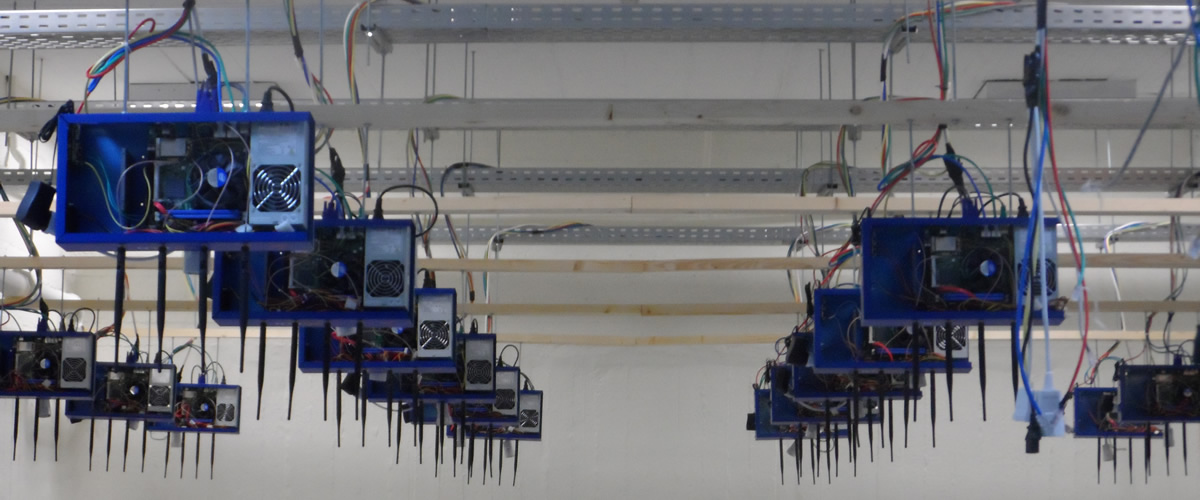
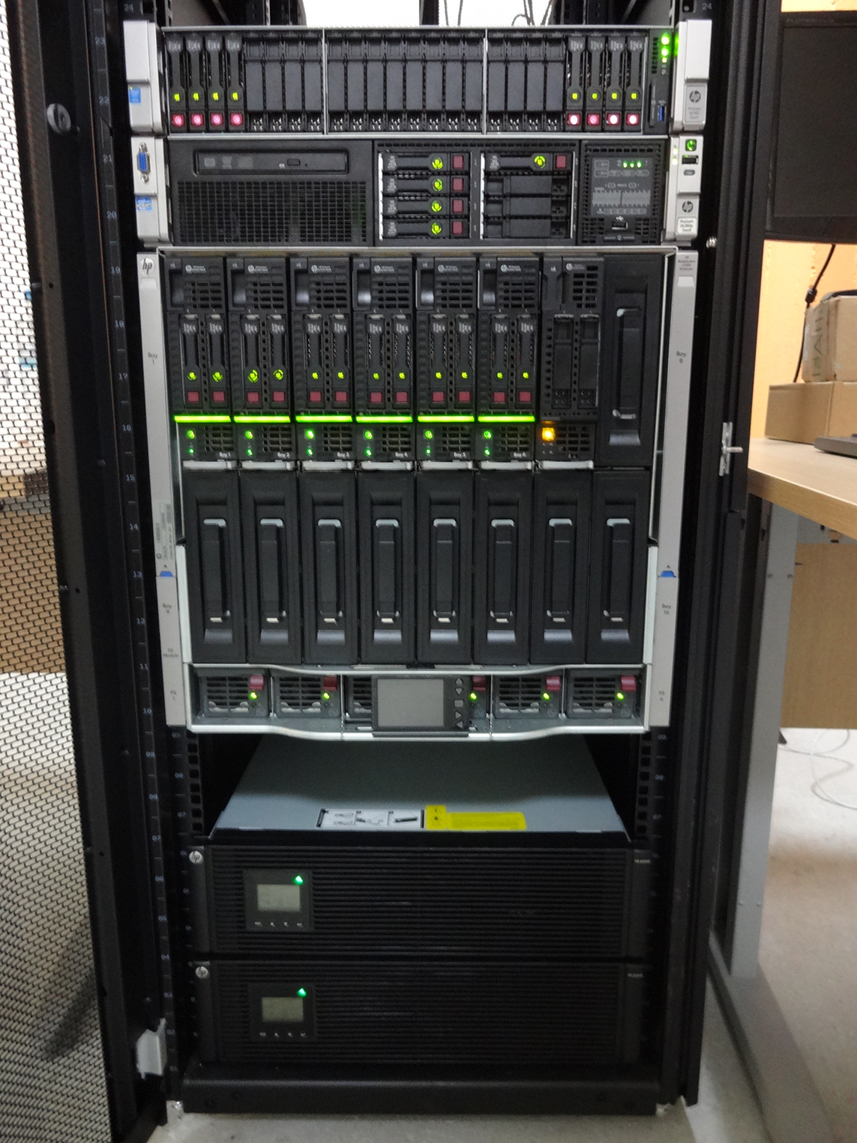 Each blade server has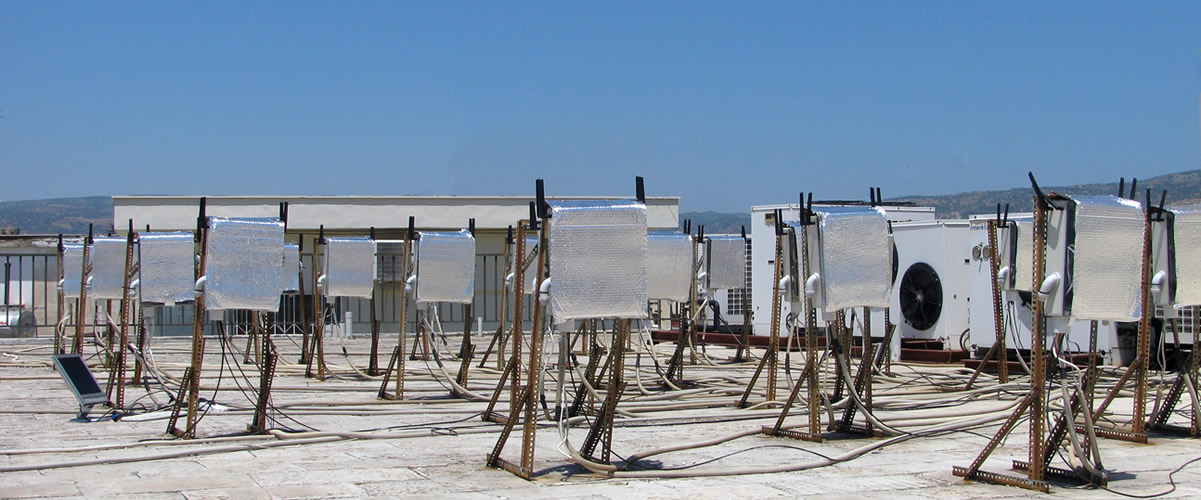
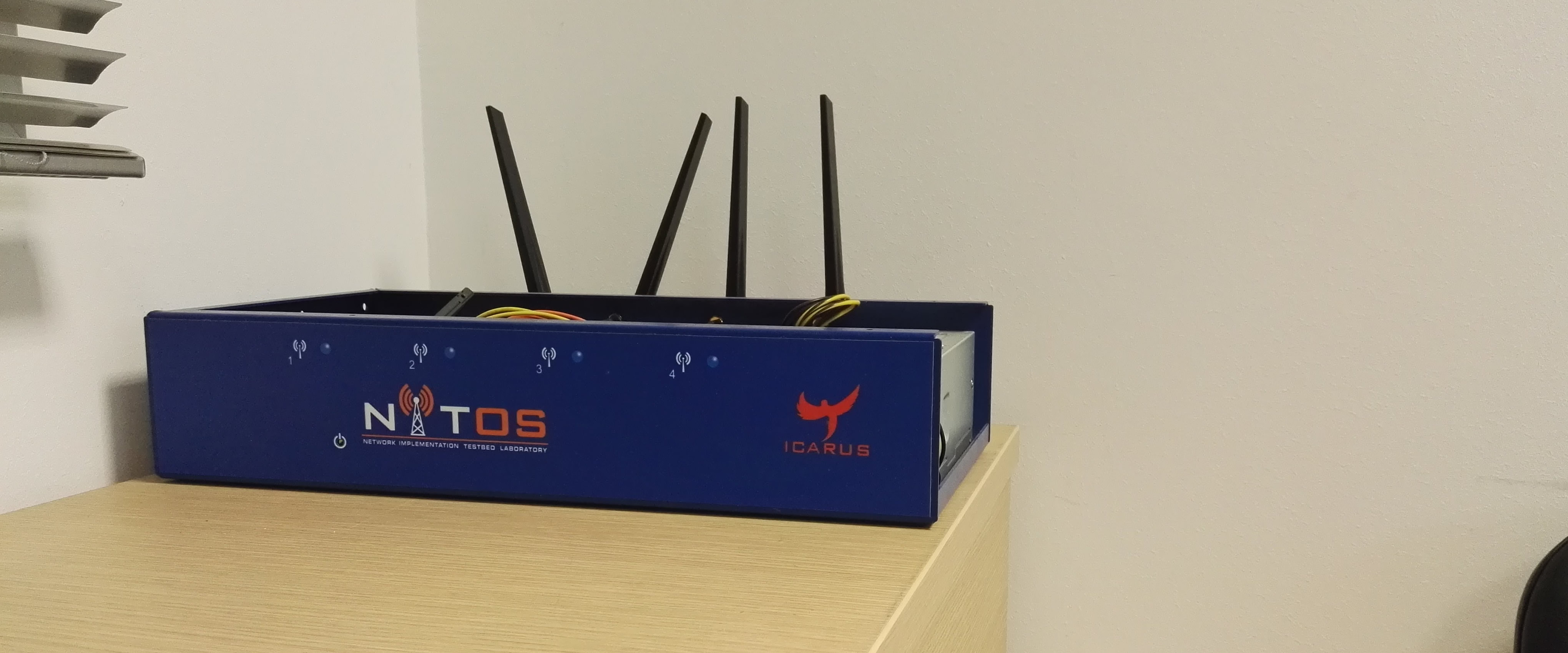
Using the LTE testbed
In order to use the LTE testbed resources offered by the NITOS facility, first you will have to create an account here and follow this tutorial. Then you will be able to reserve the LTE eNBs and the nodes with LTE connectivity, offered by the Outdoor and Indoor RF isolated testbeds.
Reserving the eNBs will render rights to the experimenter to access the LTErf service of the NITOS facility, used to configure and setup the eNBs and the EPC at the experimenter's will.
After your reservation has started, log in to the NITOS3 server with the following command:
ssh This email address is being protected from spambots. You need JavaScript enabled to view it.
Once you have logged in, you should setup the eNBs and the EPC to the default settings, as their configuration might have been altered from their normal behavior by any previous experimenter. In order to setup the eNB to the default settings you issue the following commands:
wget -qO- 'http://lterf:5054/lterf/bs/config/load?name=reset&&node=2'
Since not all of the changes take place immediately, you will need to restart the eNB for some of the changes to take effect. You can restart the eNB with the following command:
wget -qO- 'http://lterf:5054/lterf/bs/restart?node=2'
Which will return you the message:
... has been restarted
In order to check if the eNB is connected to EPC after the restart you will have to type the following command:
wget -qO- 'http://lterf:5054/lterf/epc/get?function=getSystemStatus&args=MME,S1AP_INTERFACE,192.168.200.1' | xml_pp
Which will return you the message:
<STATUS>
  <EPC>
    <getSystemStatus>
      <instance id="1">
        <componentType>MME</componentType>
        <currentStatus>CONNECTED</currentStatus>
        <lastUpdated>2015-05-21T13:49:52Z</lastUpdated>
        <statusType>S1AP_INTERFACE</statusType>
        <statusIdentifier>192.168.200.1</statusIdentifier>
        <severityLevel>0</severityLevel>
      </instance>
    </getSystemStatus>
  </EPC>
</STATUS>
In order to setup the EPC to the default settings you issue the following command:
wget -qO- 'http://lterf:5054/lterf/epc/config/load?name=setDefaultEpc'
You will need to restart the EPC twice in order for some of the changes to take effect. You can restart the EPC with the following command:
wget -qO- 'http://lterf:5054/lterf/epc/restart'
Which will return you the message:
EPC network has been restarted
You can see the parameters that can be changed and the LTERF service commands and their syntax by invoking the following command:
wget -qO- 'http://lterf:5054/lterf/' | xml_pp
It returns an XML tree with the complete list of LTERF commands. Since the eNB and EPC are back to their default settings, you can start experimenting with the LTE testbed.
You have to load the image baseline_icarus_lte.ndz to the nodes that you reserve with the following command:
omf load -i baseline_icarus_lte.ndz -t omf.nitos.nodeXXX,omf.nitos.nodeYYY